> For the complete documentation index, see [llms.txt](https://docs.mindee.com/llms.txt). Markdown versions of documentation pages are available by appending `.md` to page URLs; this page is available as [Markdown](https://docs.mindee.com/extraction-models/no-code-integration/n8n-workflows.md).
# n8n Workflows
Integrating Mindee in n8n workflows.
{% hint style="warning" %}
**The existing "Mindee" node in n8n is for the legacy v1 version, it will not work for v2.**
Use the instructions below to integrate n8n.
We are working on [updating the Mindee n8n node](https://github.com/n8n-io/n8n/pull/18986).
{% endhint %}
## Use a Sample n8n Workflow
Rather can creating your own nodes, we've provided a sample n8n workflow for you to use in your projects.
Simply download the n8n workflow file below and use it as base for creating your own workflow.
You can also import into an existing workflow, the new nodes will simply be added.
### Import the Sample n8n Workflow
First step is to download our sample workflow file below:
{% file src="/files/G4NYfqM4O3XRjafwCwLJ" %}
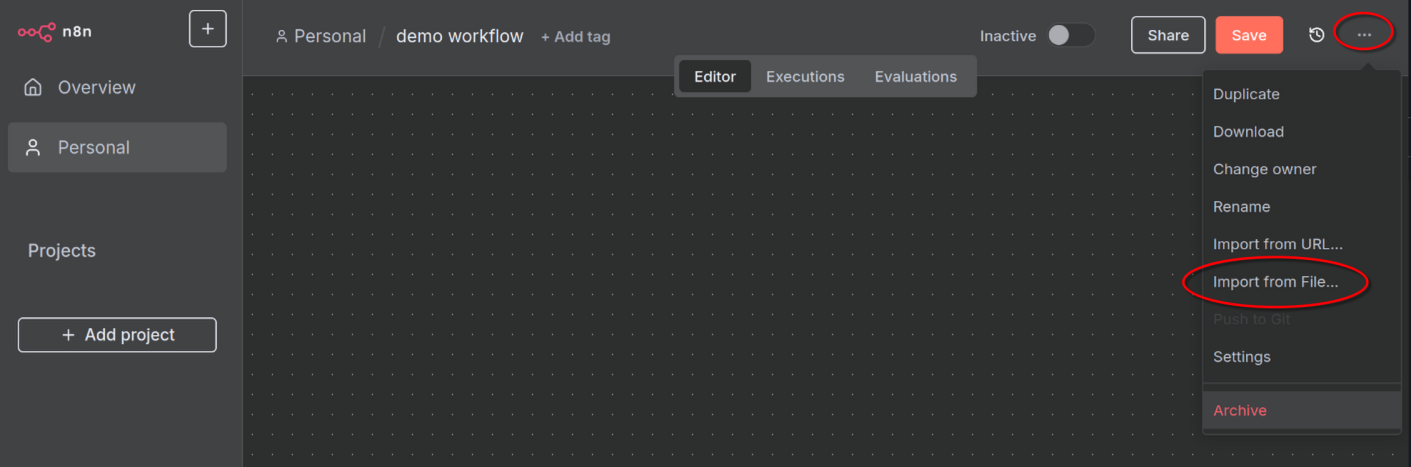
Next, import it into a new or existing n8n workflow:
Once the file is imported the nodes and steps will show up.
### Configure the Authentication
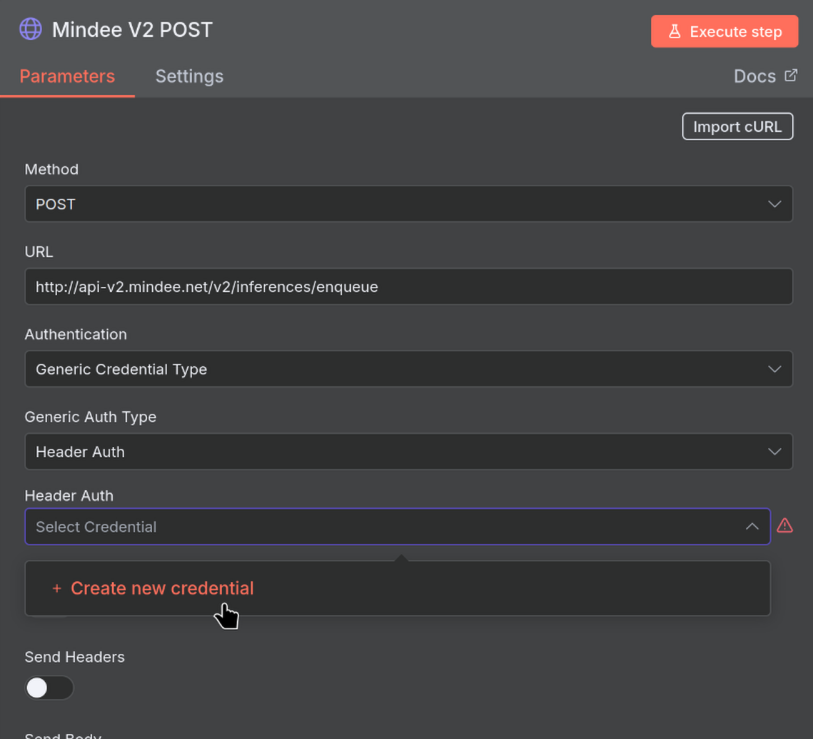
Open the "Mindee V2 Post" node by double-clicking it, and create a Header Auth Credential:
When creating your Credential, first choose one of your [Manage API Keys](/integrations/api-keys.md).
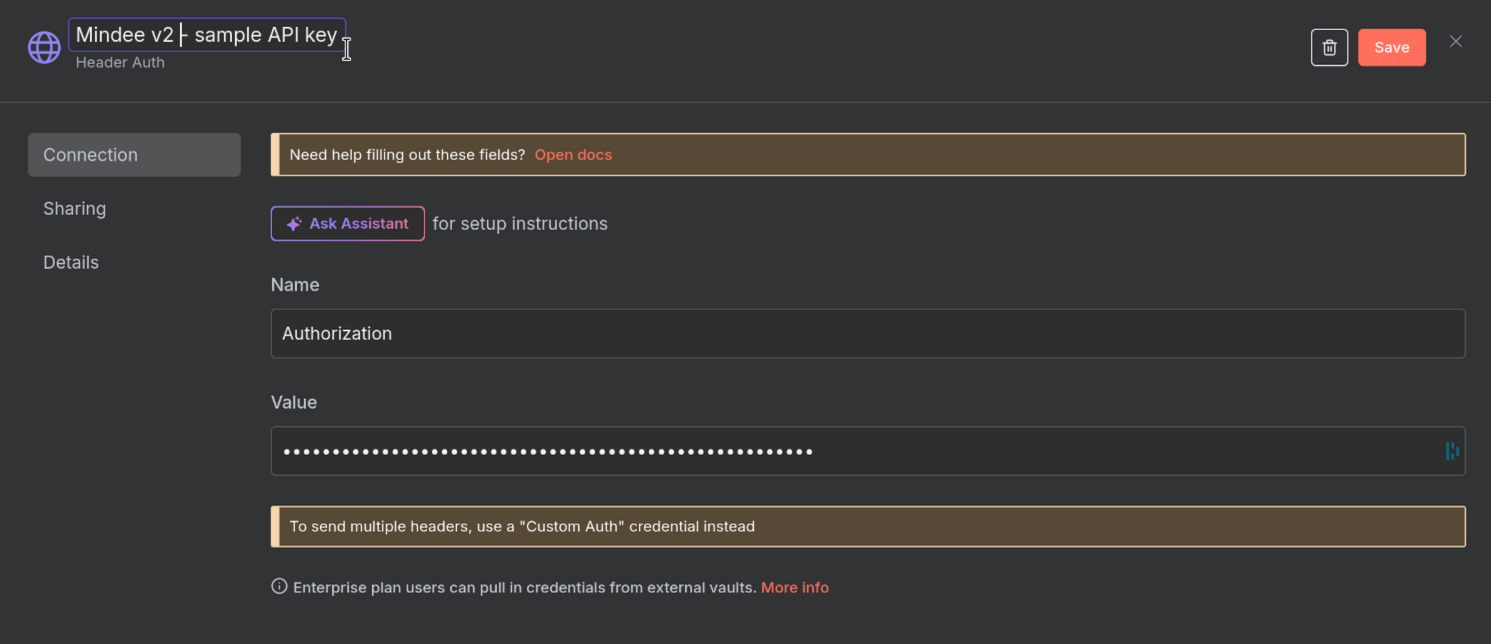
Then, set the following values in the Credential dialog box:
| Name | Value |
| -------------------------- | ----------------------------------- |
| Credential Name (top left) | `Mindee v2 -` + your API key's name |
| Header Name | `Authorization` |
| Header Value | Your API key's value |
It should look something like this when done:
Next, make sure the following n8n nodes are all using the Credential just created:
* "Mindee V2 GET Job"
* "Mindee V2 GET Inference"
It should be done automatically, but please open each node and make sure!
When all nodes are using the same Credential, authentication is set up correctly.
### Configure the Model ID
First copy your model's ID from the Mindee platform.
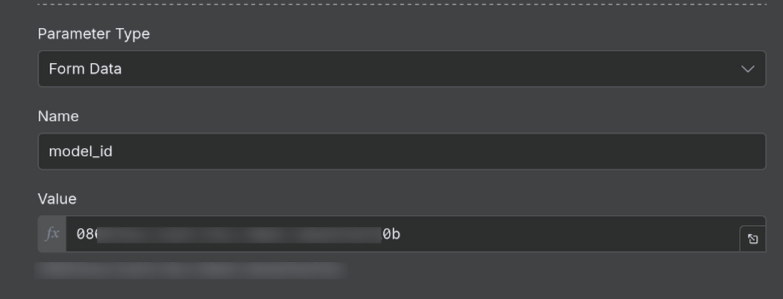
Open the "Mindee V2 Post" node, and scroll to the "Body Parameters" section.
Set the value of the "model\_id" parameter to your model's ID.
It should look something like this:
The workflow is now configured to use the specified model.
### Test the n8n Workflow
We've included a "HTTP Request" node that will download a sample invoice file from our Github repository.
In n8n, simply click the "Execute workflow" button and follow along as the various nodes/steps are executed.
In this way make sure the workflow is able to arrive at the "Result" step. The actual contents of the result don't matter, since the sample file is there only for testing the API connection. The sample file is not meant for testing your model.
Once you're able to get a result, change the "HTTP Request" node to something actually useful to you.
This includes, but is not limited to:
* email
* drive providers: Google Drive, MS OneDrive, DropBox, etc
* remote servers: URL/HTTP, S3, FTP, etc
* chat: Slack, Discord, etc
#### Something not working as expected?
Check the [Error Handling](/integrations/problem-database.md) section.
---
# Agent Instructions
This documentation is published with GitBook. GitBook is the documentation platform designed so that both humans and AI agents can read, navigate, and reason over technical content effectively. Learn more at gitbook.com.
## Querying This Documentation
If you need additional information that is not directly available in this page, you can query the documentation by asking a question.
Perform an HTTP GET request on the following URL with the `ask` and `goal` query parameters:
```
GET https://docs.mindee.com/extraction-models/no-code-integration/n8n-workflows.md?ask=&goal=
```
`ask` is the immediate question: it should be specific, self-contained, and written in natural language.
`goal` is what the user is ultimately trying to achieve, the reason they need the answer. Sharing it helps GitBook give you a better, more relevant answer. A goal is most helpful when it describes the outcome the user wants rather than restating the question. For example, with `ask=how do I create an API token`, a goal like `automate deployments from our CI pipeline` lets GitBook tailor the answer to that use case.
The response will contain a direct answer to the question and relevant excerpts and sources from the documentation.
Use this mechanism when the answer is not explicitly present in the current page, you need clarification or additional context, or you want to retrieve related documentation sections.