# OCR Model
A file sent to the OCR Model may have any number of pages, [within limits](https://docs.mindee.com/integrations/technical-limitations#file-limits).
## Create an OCR Model
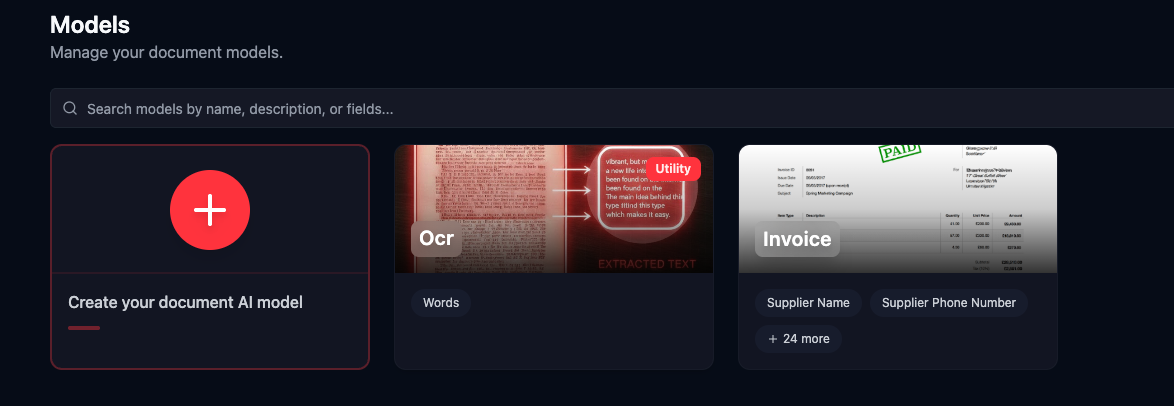
1. To create a OCR utility, click on **Models**, and then click on **Create your document AI model**.
2. Scroll to the **Document Utilities** section, click on **OCR.**
3. You can now use the **Live Test** tab to process documents.
Your OCR utility is now available in your **Models** tab:
Here is a step-by-step tutorial that shows you how to properly create an OCR utility:
{% @supademo/embed url="" demoId="cmlrrputf0pnh1189ay3tsdkt" %}
## Integration
Once your OCR model is created and tested, integration documentation is provided in the "Documentation" page, or here: [integration](https://docs.mindee.com/utility-models/ocr/integration "mention")