> For the complete documentation index, see [llms.txt](https://docs.mindee.com/llms.txt). Markdown versions of documentation pages are available by appending `.md` to page URLs; this page is available as [Markdown](https://docs.mindee.com/v2/fr/modeles-extraction/no-code-integration/make.com-scenarios.md).
# Scénarios make.com
Intégration de Mindee dans les scénarios make.com.
{% hint style="info" %}
Utilisez uniquement l'application vérifiée [**application Mindee V2**](https://www.make.com/en/integrations/mindee).
Les applications communautaires fonctionnent uniquement avec Mindee V1.
{% endhint %}
## Avant de commencer
Lorsque vous intégrez Mindee avec Make, vous aurez besoin d'un module d'entrée de fichier.
Cela comprend, sans toutefois s’y limiter :
* e-mail
* fournisseurs de services de stockage : Google Drive, MS OneDrive, DropBox, etc.
* serveurs distants : URL/HTTP, S3, FTP, etc.
* chat : Slack, Discord, etc.
Dans la documentation Make, jetez un coup d'œil à la section : [Travailler avec des fichiers](https://help.make.com/working-with-files)
## Ajouter Mindee à un scénario Make.com
Vous pouvez utiliser l'application Mindee dans n'importe quel scénario Make.com.
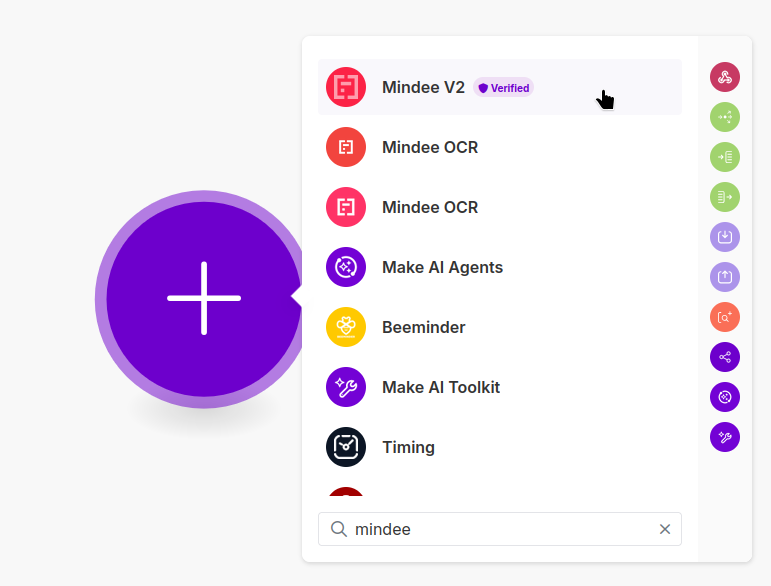
Lorsque vous ajoutez un module, recherchez « mindee » et sélectionnez **Mindee V2** vérifiée :
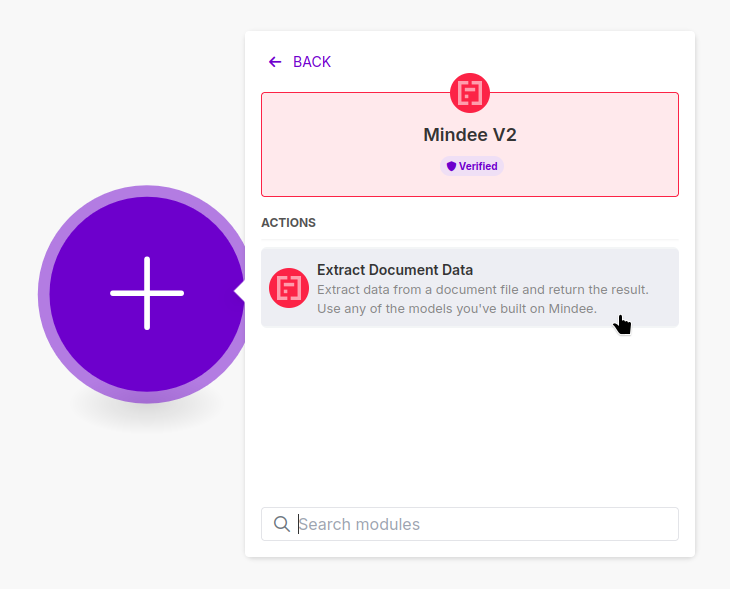
Ensuite, choisissez l'action « Extraire les données du document » :
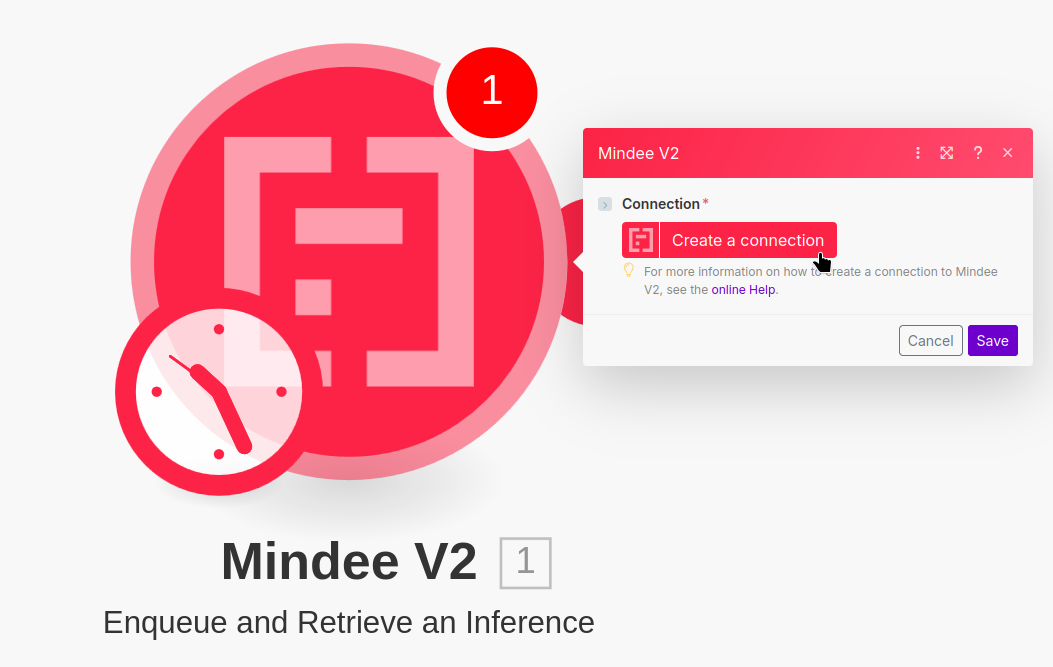
Une fois que vous avez le module « Extraire les données du document » dans votre scénario, vous devrez le connecter à l'un de vos [Gérer les clés API](/v2/fr/integrations/api-keys.md).
Pour cela, cliquez sur le bouton « Créer une connexion » :
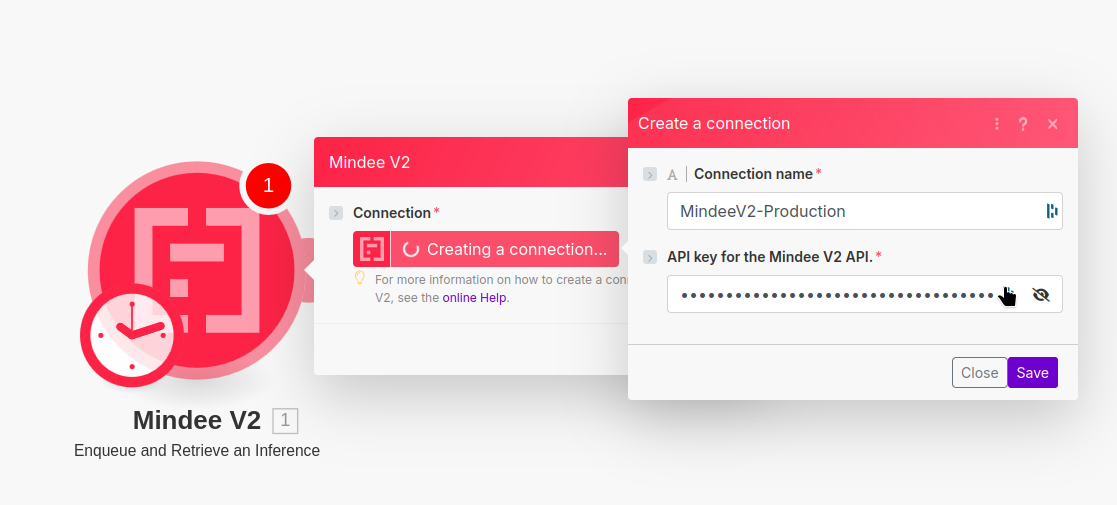
Dans la boîte de dialogue Créer une connexion, renseignez les informations suivantes :
* Un nom pour votre connexion, il doit être au format : `MindeeV2-` + le nom de votre clé API
* votre [clé API Mindee V2](/v2/fr/integrations/api-keys.md#key-creation)
Terminez en cliquant sur « Enregistrer ».
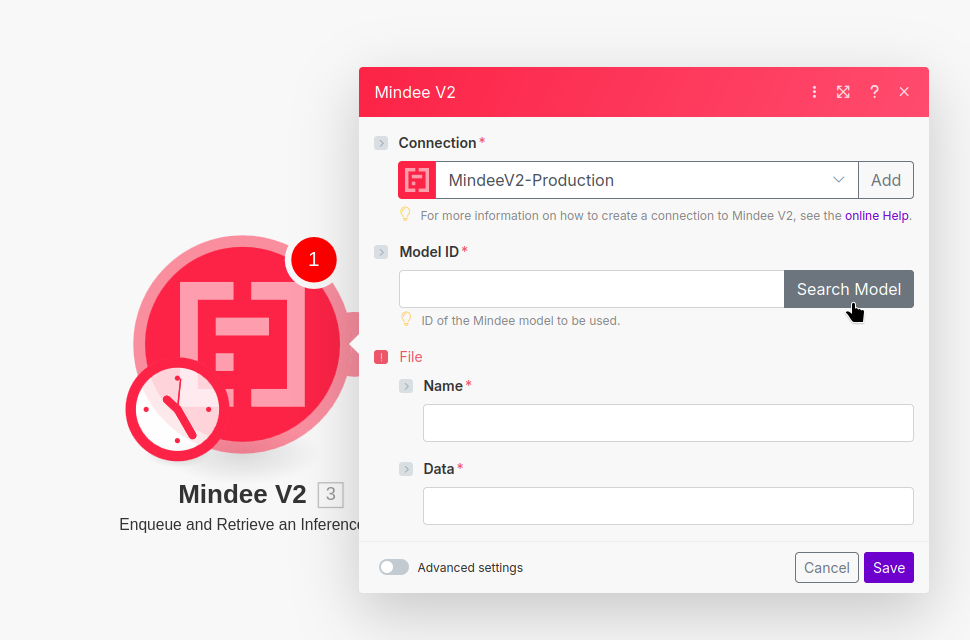
Vous pouvez maintenant spécifier le modèle à utiliser. Pour cela, cliquez sur « Rechercher un modèle » :
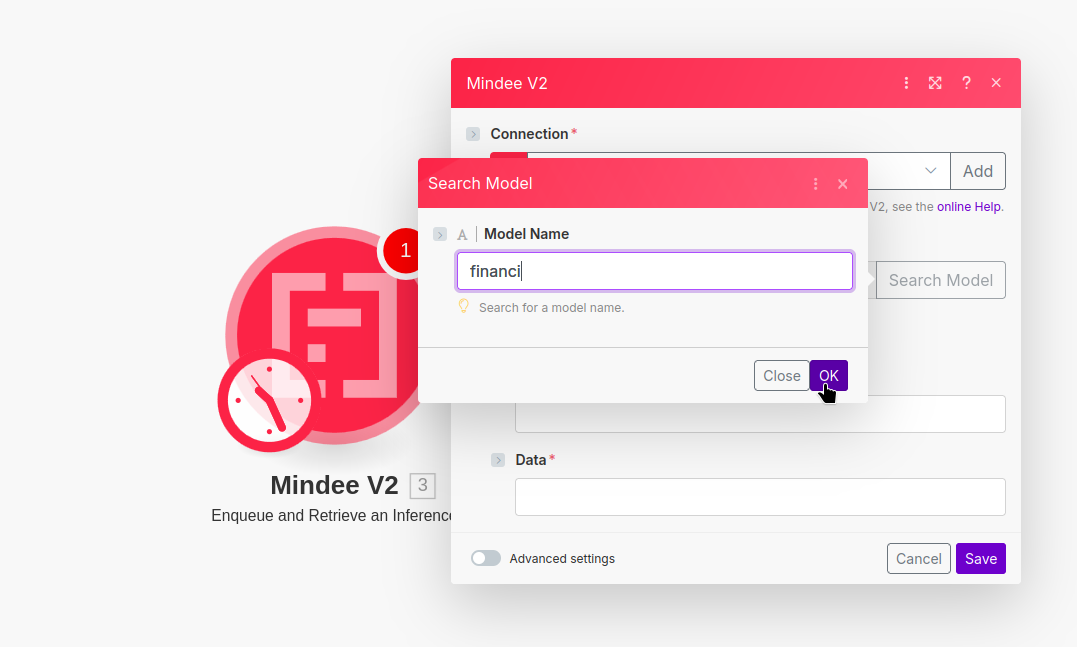
Dans la fenêtre de dialogue, vous pourrez saisir une chaîne de recherche.
Saisissez le nom du modèle que vous souhaitez utiliser, puis cliquez sur « OK ».
S'il n'y a qu'une seule correspondance à votre terme de recherche, l'ID de modèle sera ajouté.
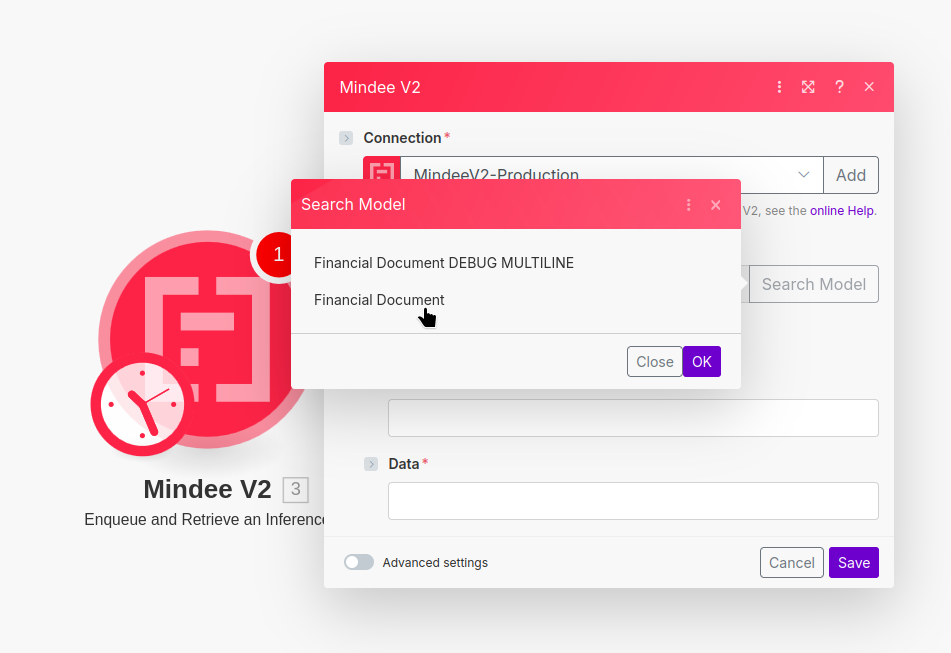
S'il y a plusieurs correspondances à votre recherche, choisissez la bonne dans la liste :
{% hint style="success" %}
**Voilà, c'est terminé !** Le module Mindee V2 est maintenant prêt à accepter des connexions.
{% endhint %}
Cliquez sur « Enregistrer ».
{% hint style="info" %}
**Ne renseignez pas les informations « File » dans le module Mindee V2.**
Cela est fait automatiquement en connectant un module approprié.
{% endhint %}
## Étapes suivantes
Maintenant que Mindee est intégré, vous pouvez utiliser les résultats dans n'importe quelle action Make.
Voici quelques exemples de flux de travail :
* Enregistrez les données structurées brutes (JSON) sur un espace de stockage comme Google Drive ou MS OneDrive
* Mettez les champs en correspondance avec un format tabulaire comme CSV, MS Excel ou Google Sheets
* Utilisez les champs extraits pour remplir :
* des CRM comme Salesforce ou HubSpot
* des documents en ligne comme Notion, MS Word ou Google Docs
* etc.
---
# Agent Instructions
This documentation is published with GitBook. GitBook is the documentation platform designed so that both humans and AI agents can read, navigate, and reason over technical content effectively. Learn more at gitbook.com.
## Querying This Documentation
If you need additional information that is not directly available in this page, you can query the documentation dynamically by asking a question.
Perform an HTTP GET request on the current page URL with the `ask` query parameter, and the optional `goal` query parameter:
```
GET https://docs.mindee.com/v2/fr/modeles-extraction/no-code-integration/make.com-scenarios.md?ask=&goal=
```
`ask` is the immediate question: it should be specific, self-contained, and written in natural language.
`goal` is optional and describes the broader end goal you are ultimately trying to accomplish on behalf of the user. GitBook uses it to tailor the answer towards what is most useful for that goal.
The response will contain a direct answer to the question and relevant excerpts and sources from the documentation.
Use this mechanism when the answer is not explicitly present in the current page, you need clarification or additional context, or you want to retrieve related documentation sections.