> For the complete documentation index, see [llms.txt](https://docs.mindee.com/llms.txt). Markdown versions of documentation pages are available by appending `.md` to page URLs; this page is available as [Markdown](https://docs.mindee.com/v1/account-and-profile/organizations.md).
# Organizations
Your first Mindee account is a personal account: you cannot invite any member to join it.
To do so, you need to create an organization.
Users can create multiple organizations, making it easier to track how the APIs in that organization are being used, manage members, and handle billings for each organization.
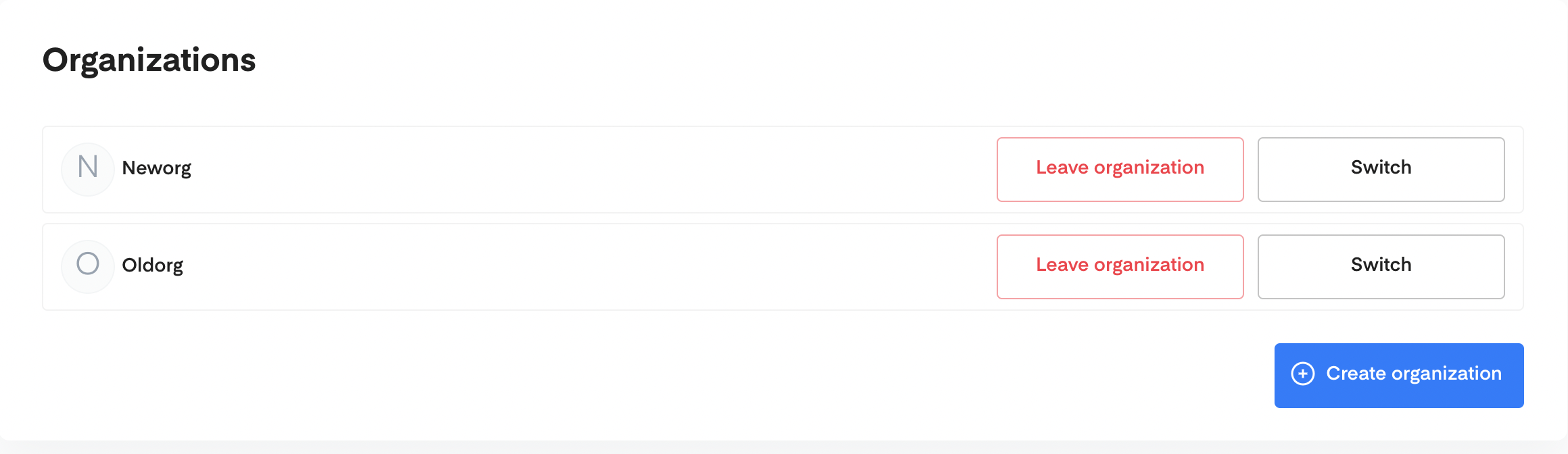
From the **Organizations** overview page, for the organizations you are admin, you will be able to oversee and manage members in those organizations, APIs, and billing across the different organizations.
## Creating an Organization
To create an organization from your account
1. Go to your [Settings dashboard](/v1/account-and-profile/account-settings.md#accessing-your-settings-dashboard) and click on **Organization**
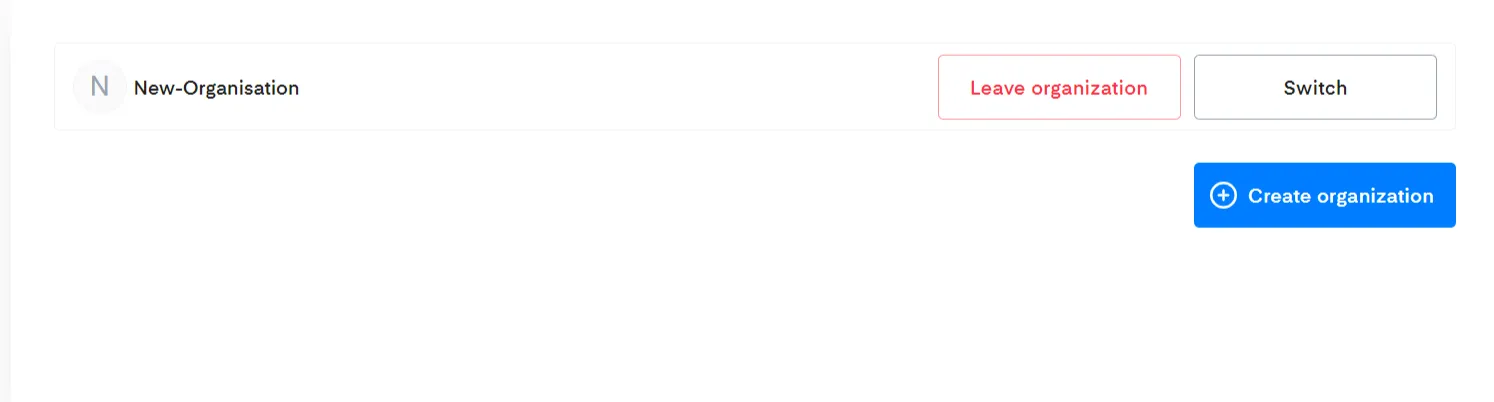
2. On the Organization overview page, click on the \*\*Create organization \*\*button.
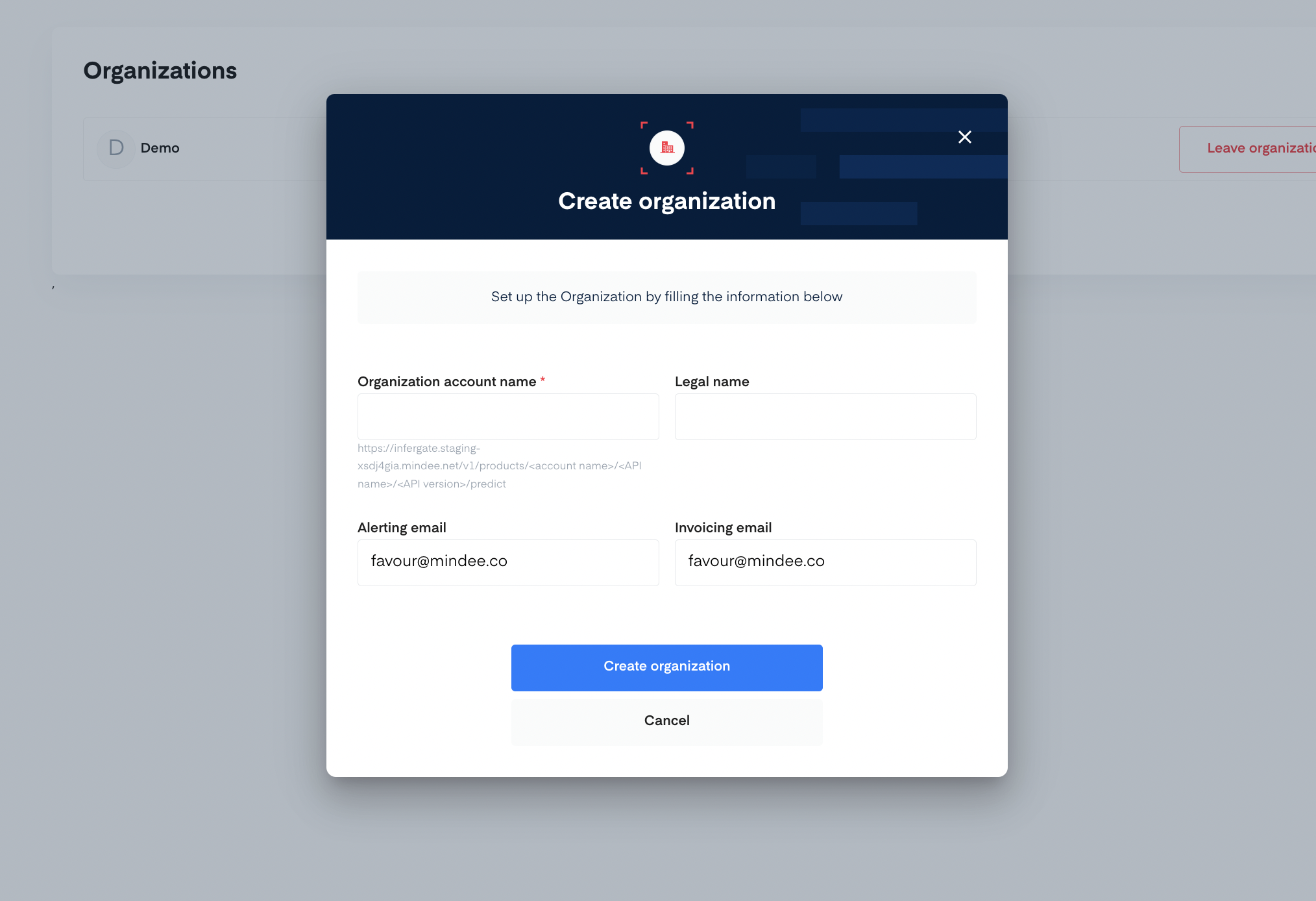
2. Set up the Organization by filling in the following information: **Organization account name**, **Legal name**, **Alerting email**, and **Invoicing email**.
3. Click on the \*\*Create organization \*\* button as seen above. Your added organization will be visible on the organization overview page.
## Accessing the Organization Overview Page
You can create multiple organization accounts in Mindee. You can also switch from one organization to another or leave an organization as well as invite members to your organization.
To switch to another organization and access the organization settings overview page.
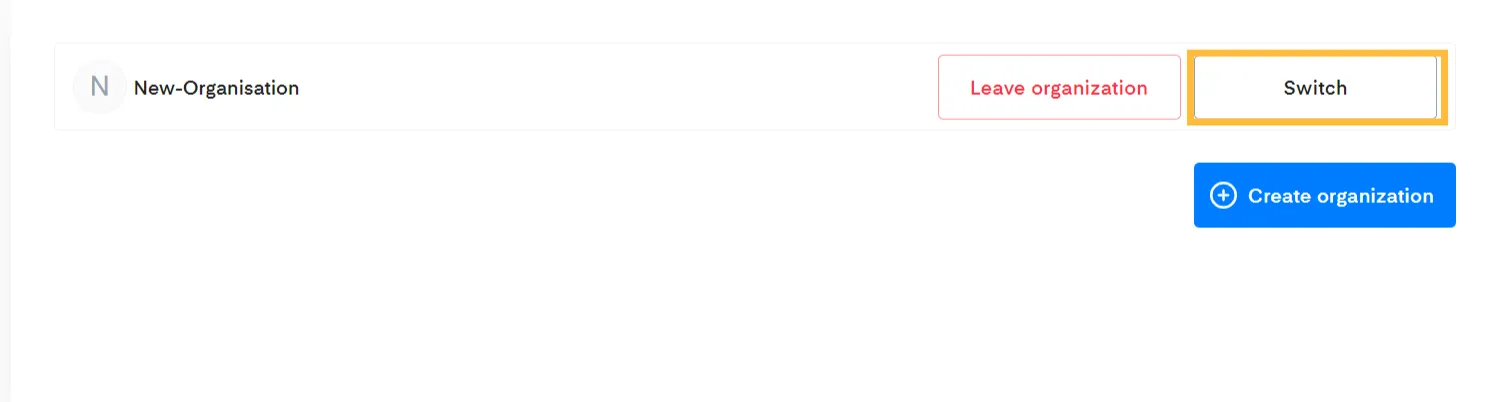
1. Click on the **Switch** button from the organization's overview page.
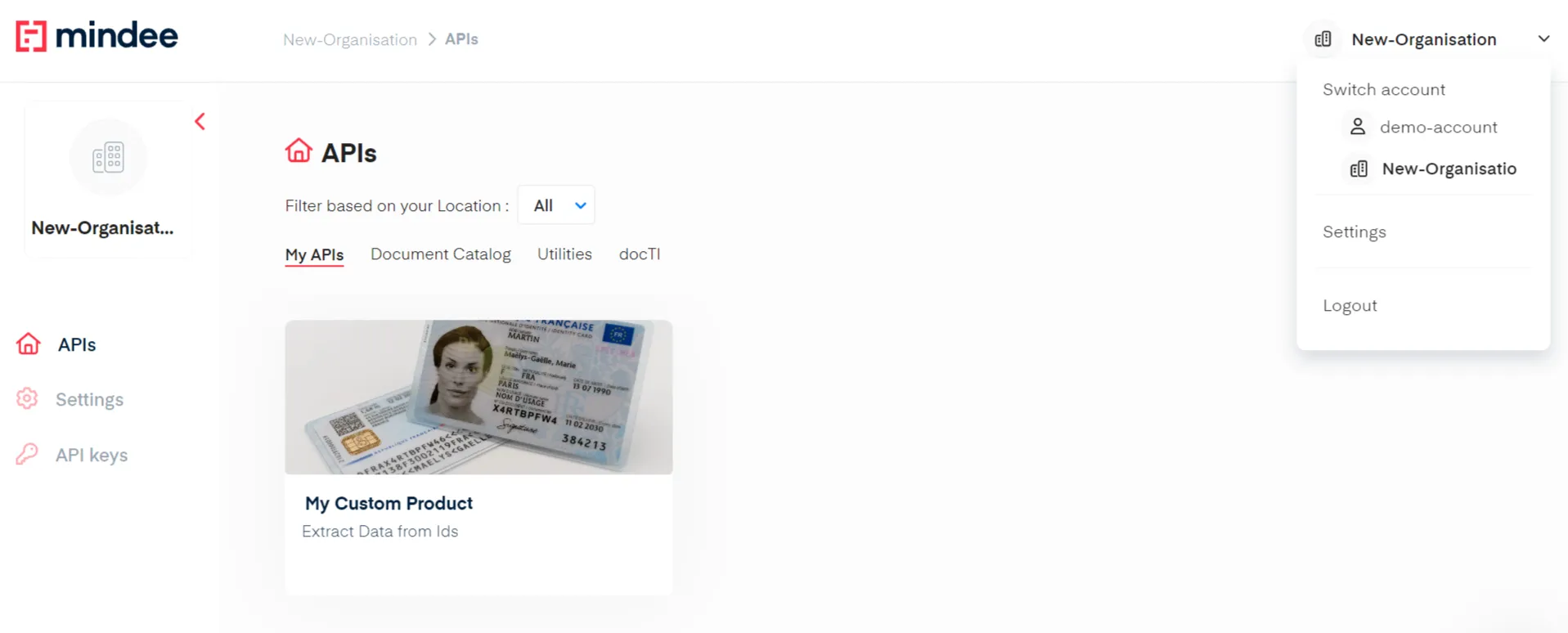
2. You'll land on the organization's APIs hub. Click on the organization name at the top right side of the page and click on **Settings**.
{% hint style="success" %}
You can switch between organization accounts by clicking on the organization name from the drop-down.
{% endhint %}
3. You'll land on the organization overview page.
## Editing Organization Account Profile
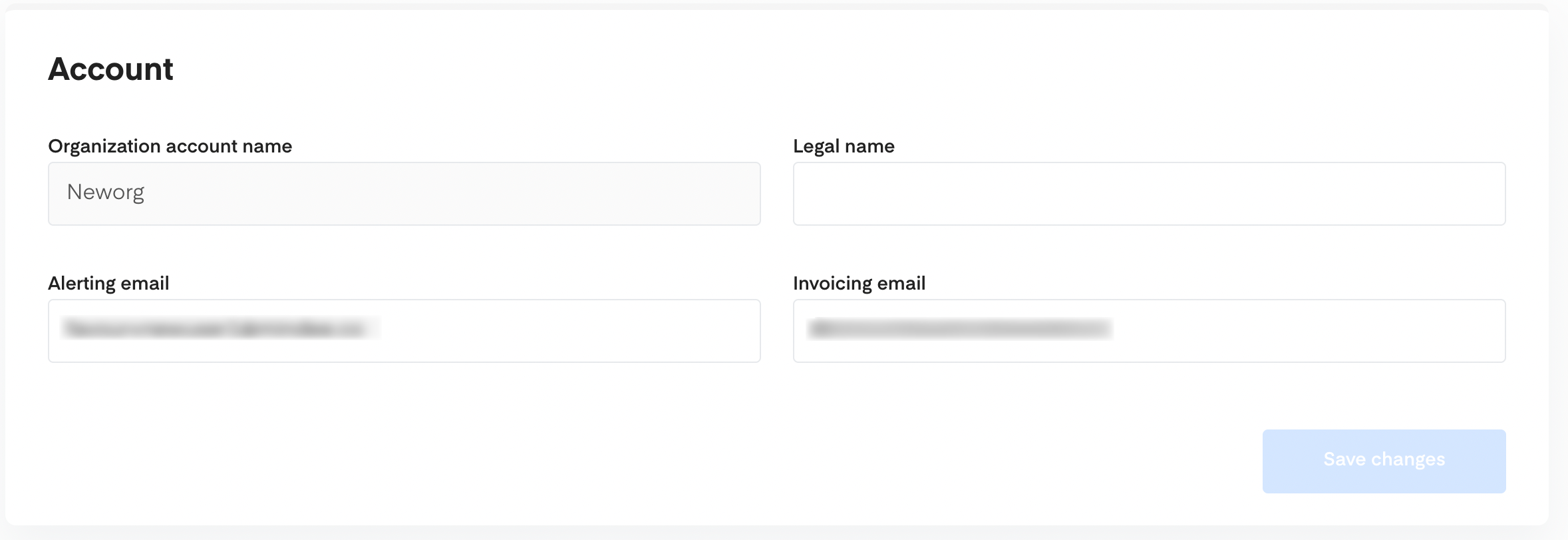
In the **Account** overview page of your created organization settings dashboard, you can edit the following:
* Legal name
* Alerting email
* Invoicing email
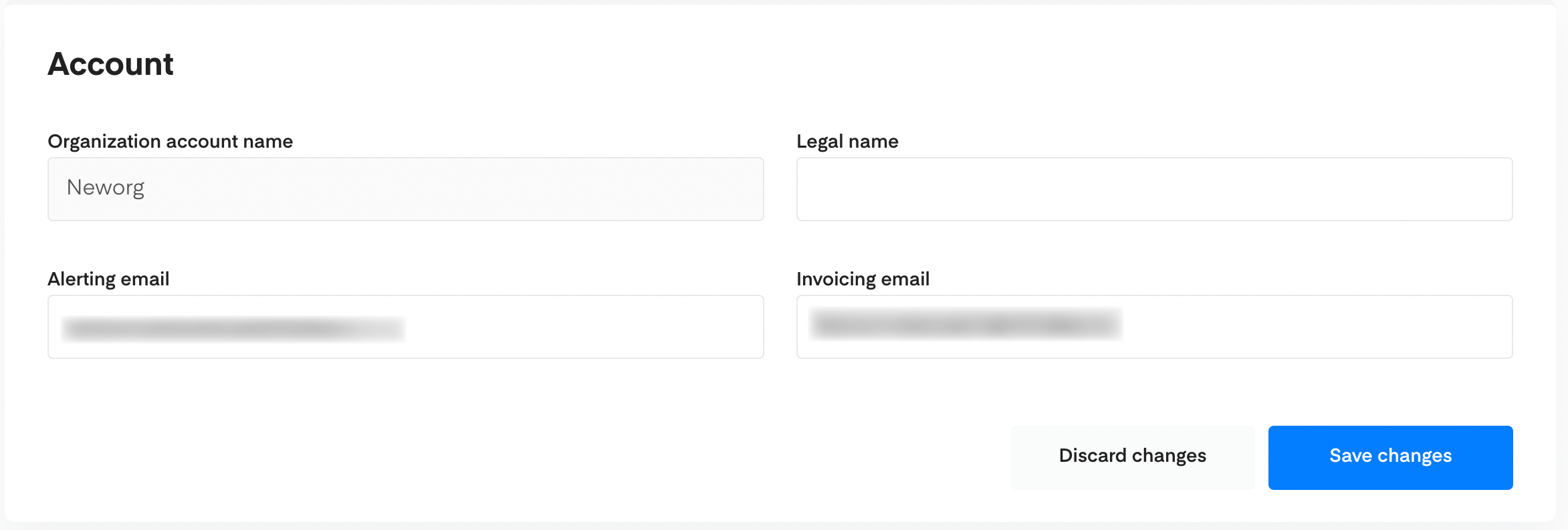
Once changes have been made to these fields, click on **Save changes.** If you do not approve of the changes, click on **Discard changes**.
## Managing Organization Members
When you have created your organization you can perform the following actions:
* [Add member to your organization](#adding-members-to-your-organization)
* [Updating member role and details](#updating-member-role-and-details)
* [Remove member from your organization](#removing-a-member-from-the-organization)
### Adding Member to your Organization
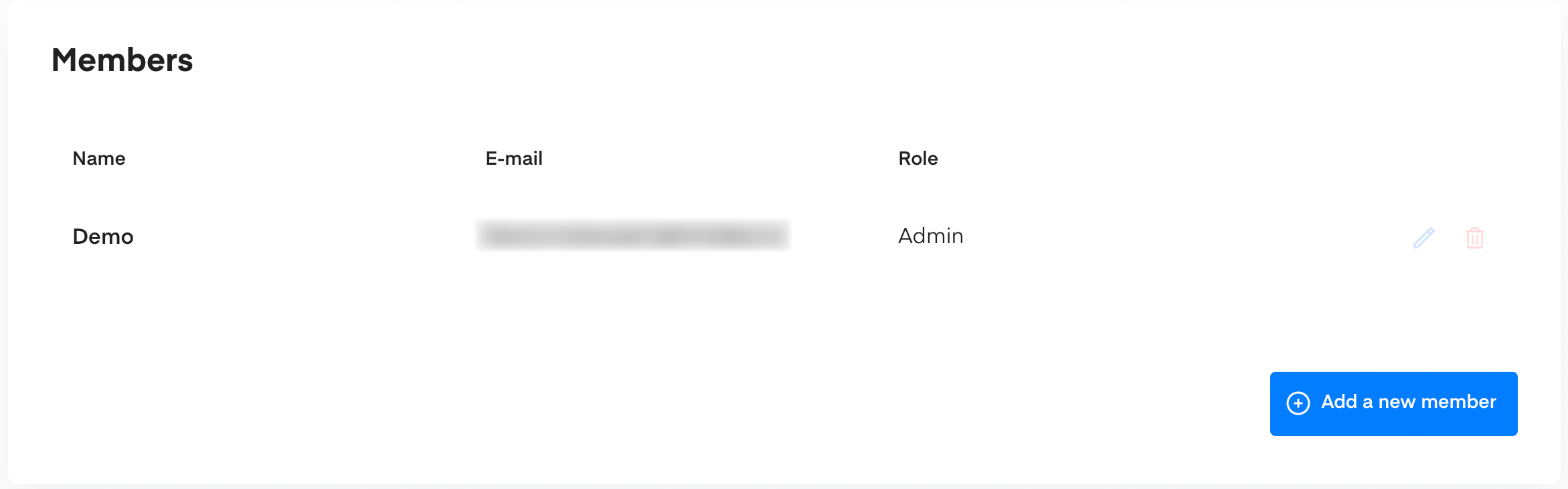
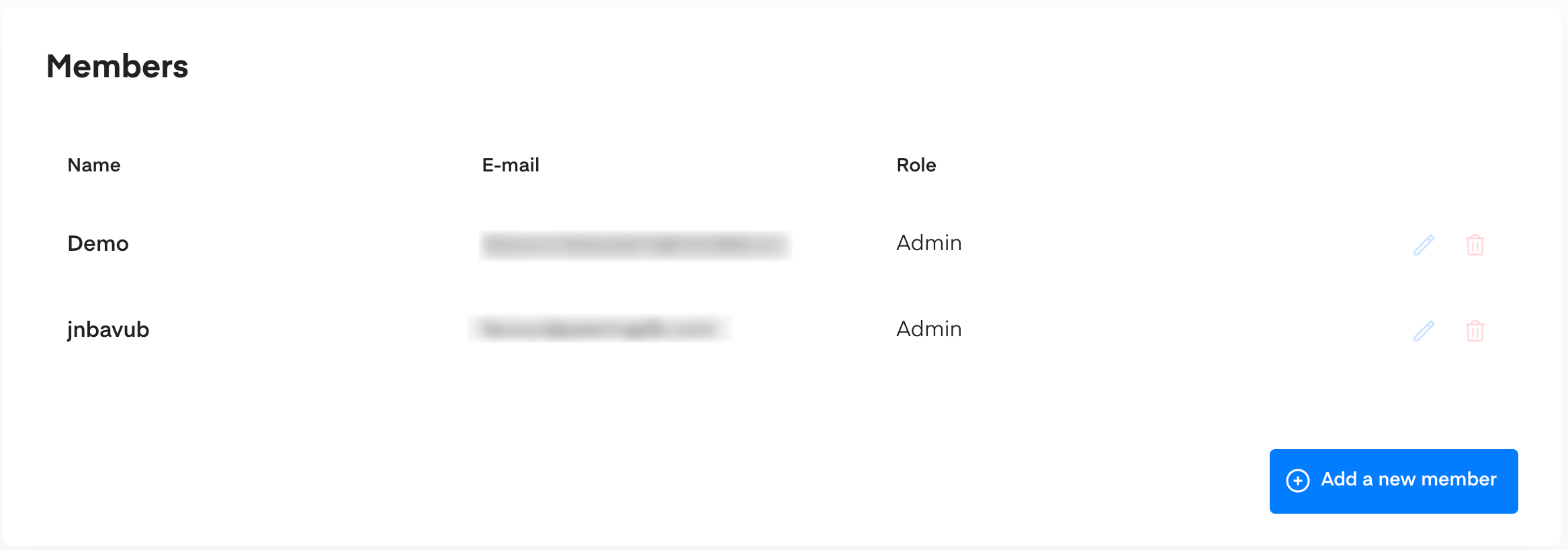
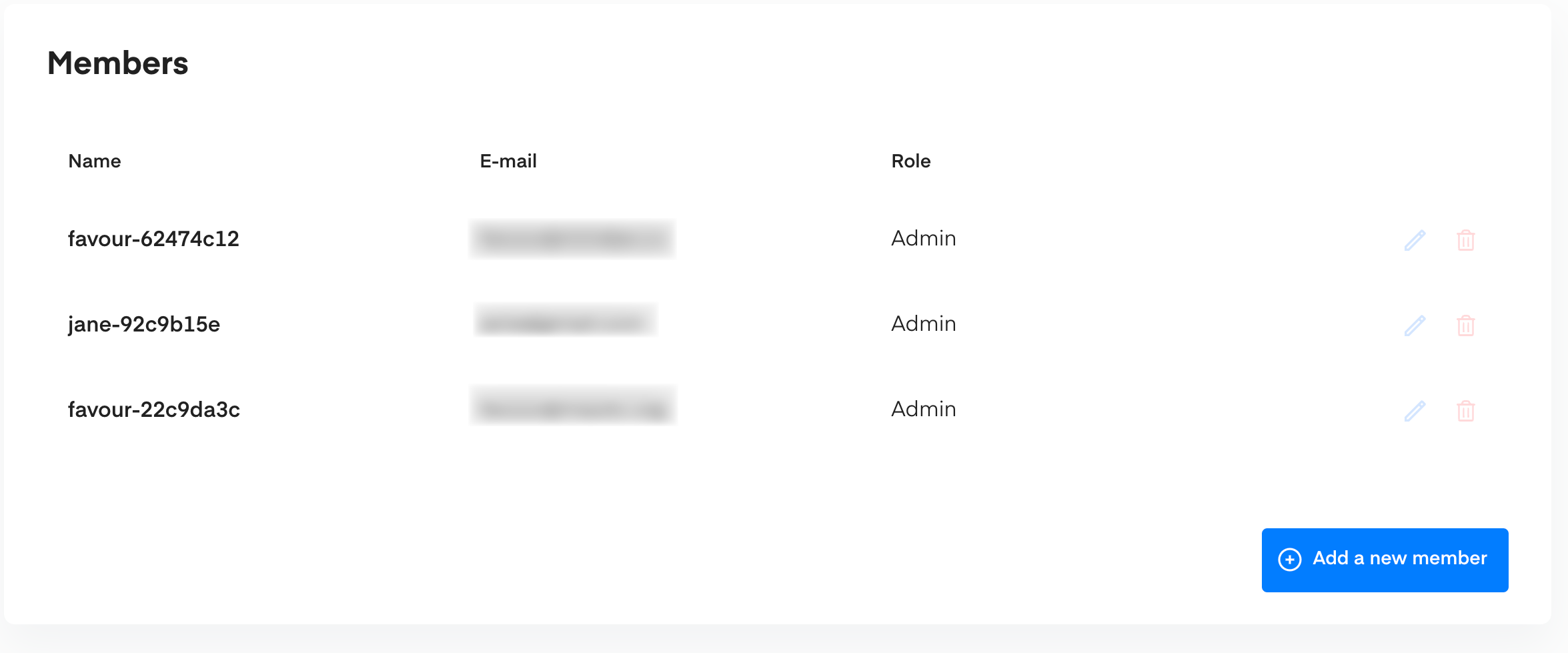
From your organization settings dashboard, you can invite and add members to your organization from the Members overview page.
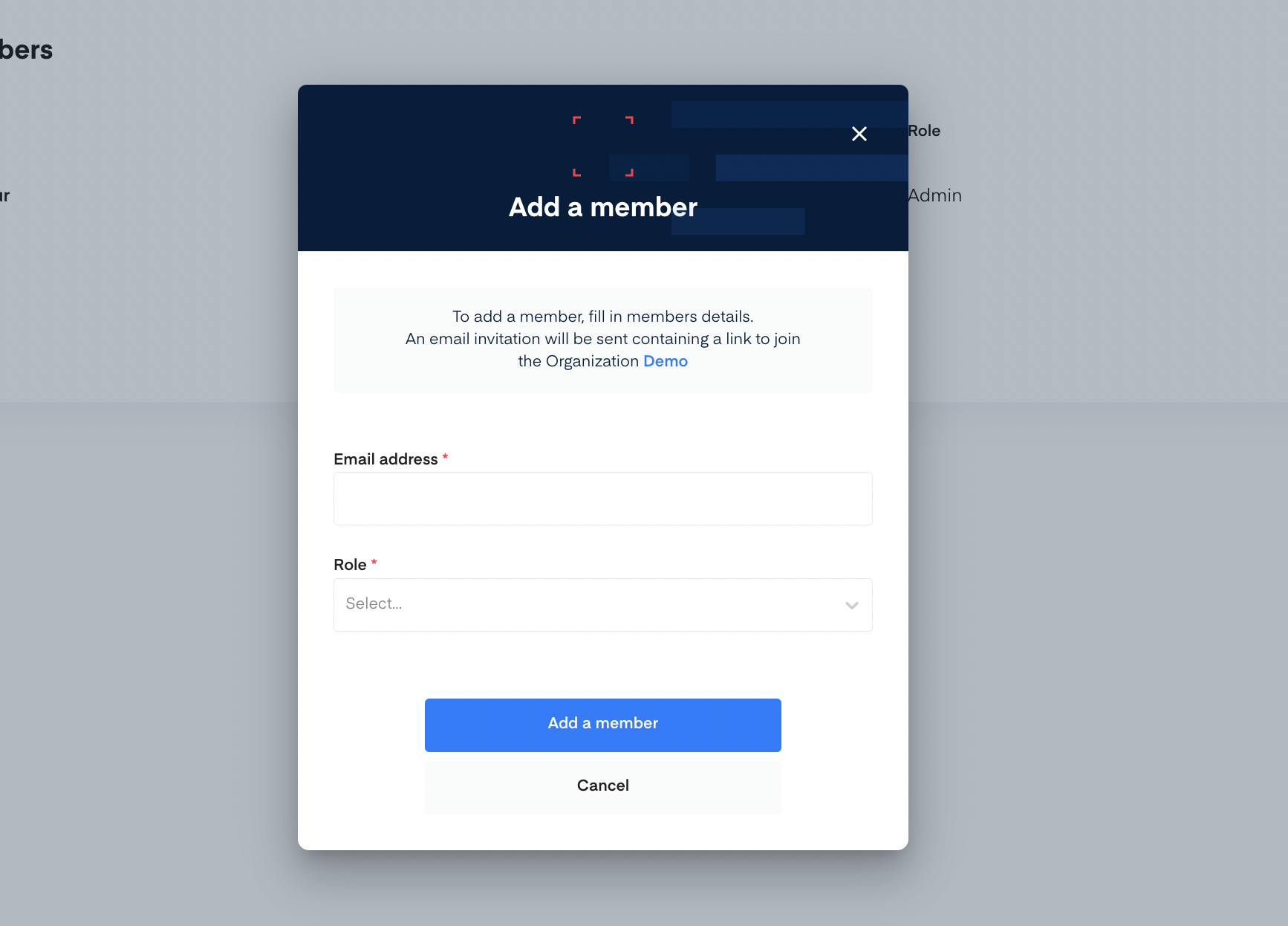
1. Go to the **Members** section and click on the \*\*Add a member \*\*button.
2. Add the email address of the member.
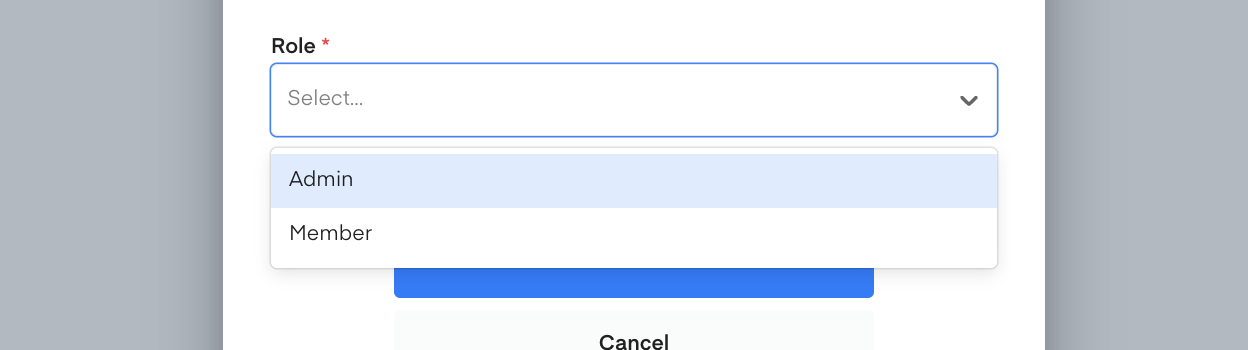
3. Select the role you want to give the member either *Admin* or *member* role.
4. Once the fields have been filled click on the **Add a member** button.
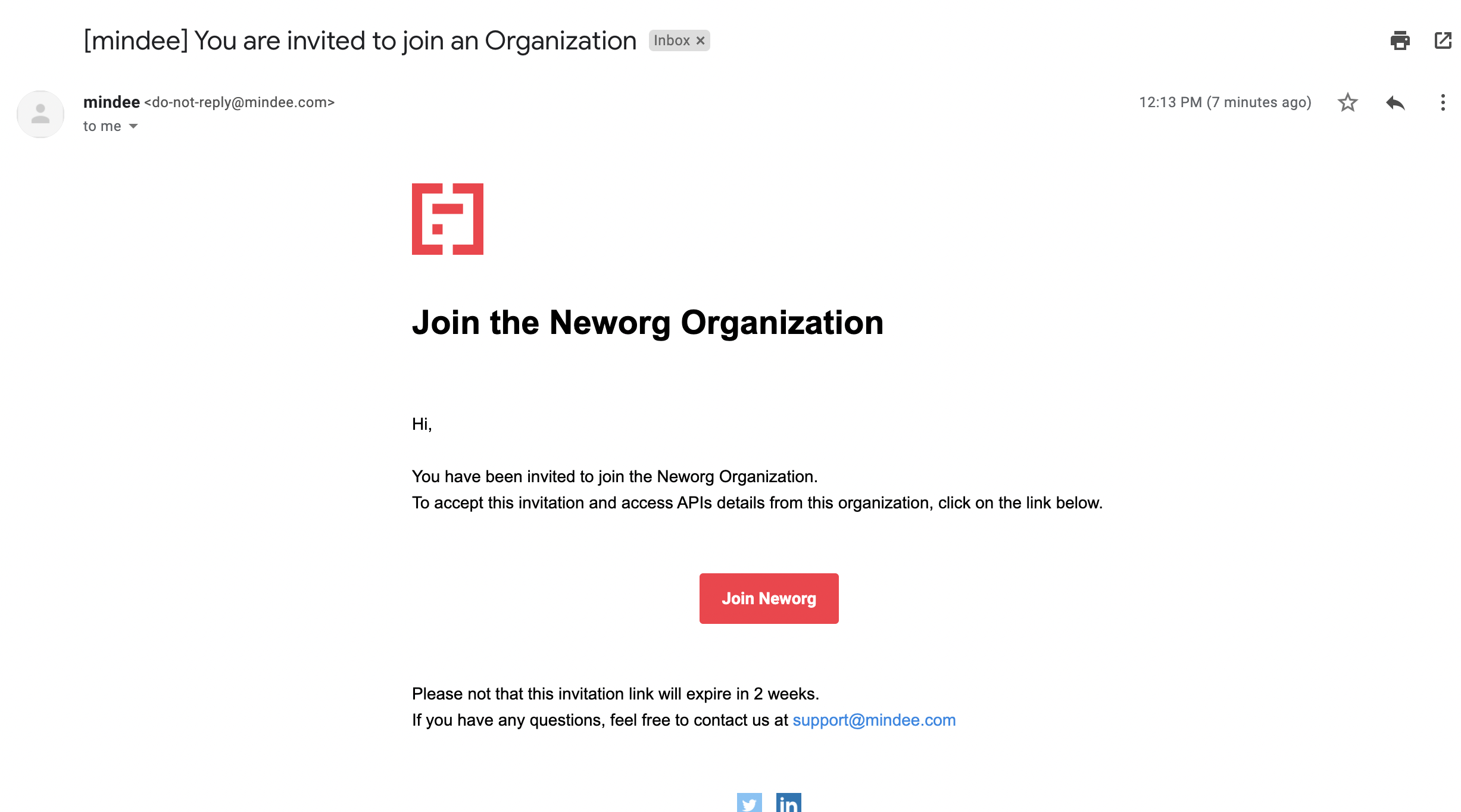
You'll receive a pop-up notification that your invitation has been sent. The invited member will also receive an email with an invitation.
Once the invited member accepts the invitation, they will have access to APIs details from the organization. The **Members** overview page will also be updated.
### Updating Member Role and Details
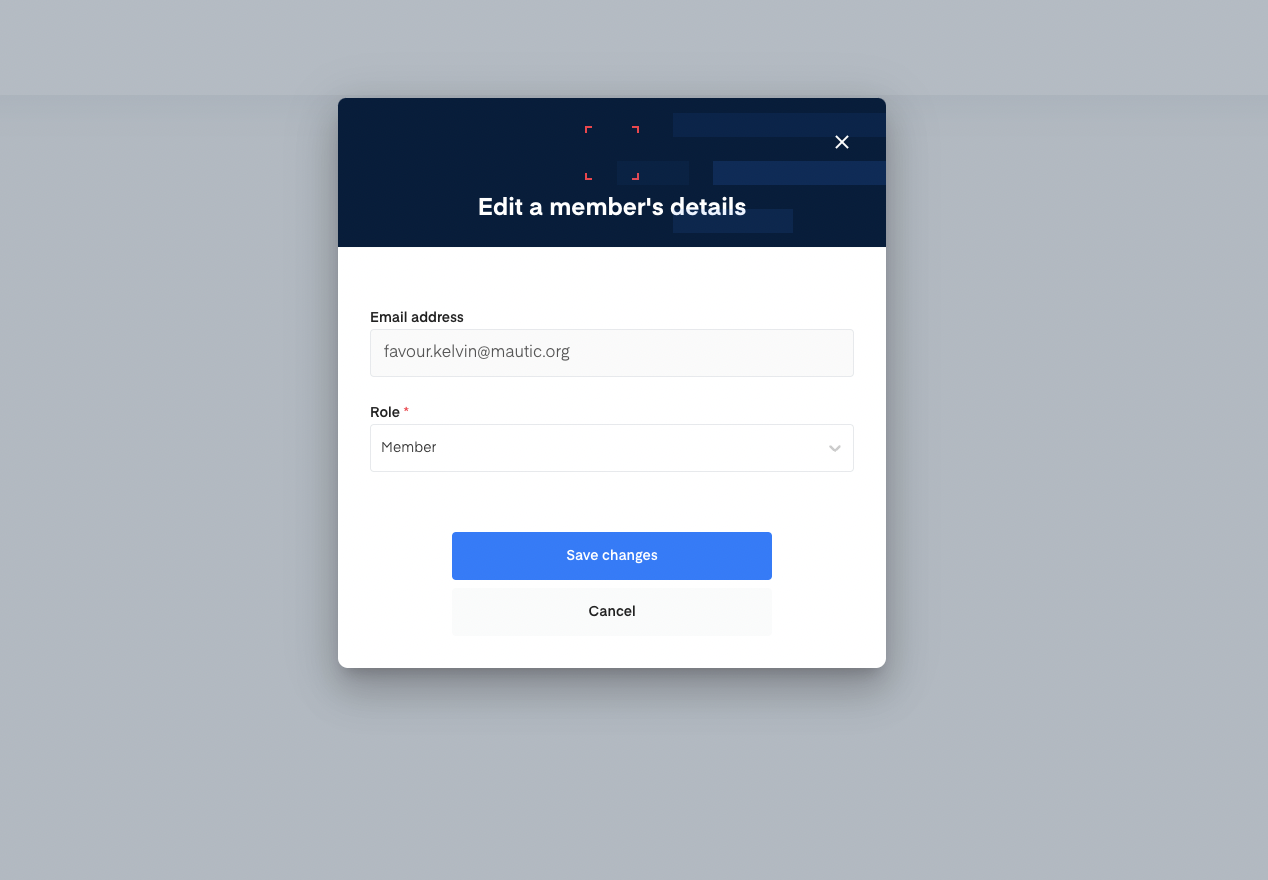
You can only update the permission of members who have the **Member** role in your organization. You can give an **Admin** role to these members. To do so:
1. Click on the **Edit** icon
2. Edit your member's details by selecting the role you want to assign your member with from the drop down.
3. Click on **Save changes**.
Your member's role will be updated in the **Members** overview page.
{% hint style="info" %}
You cannot change a member's email directly, you can however remove the member from your organization, and add the member back with the right email.
{% endhint %}
To update member permission from **Admin** role to **Member** role. You'll need to contact the support team.
### Removing a Member From The Organization
To remove a member from your organization.
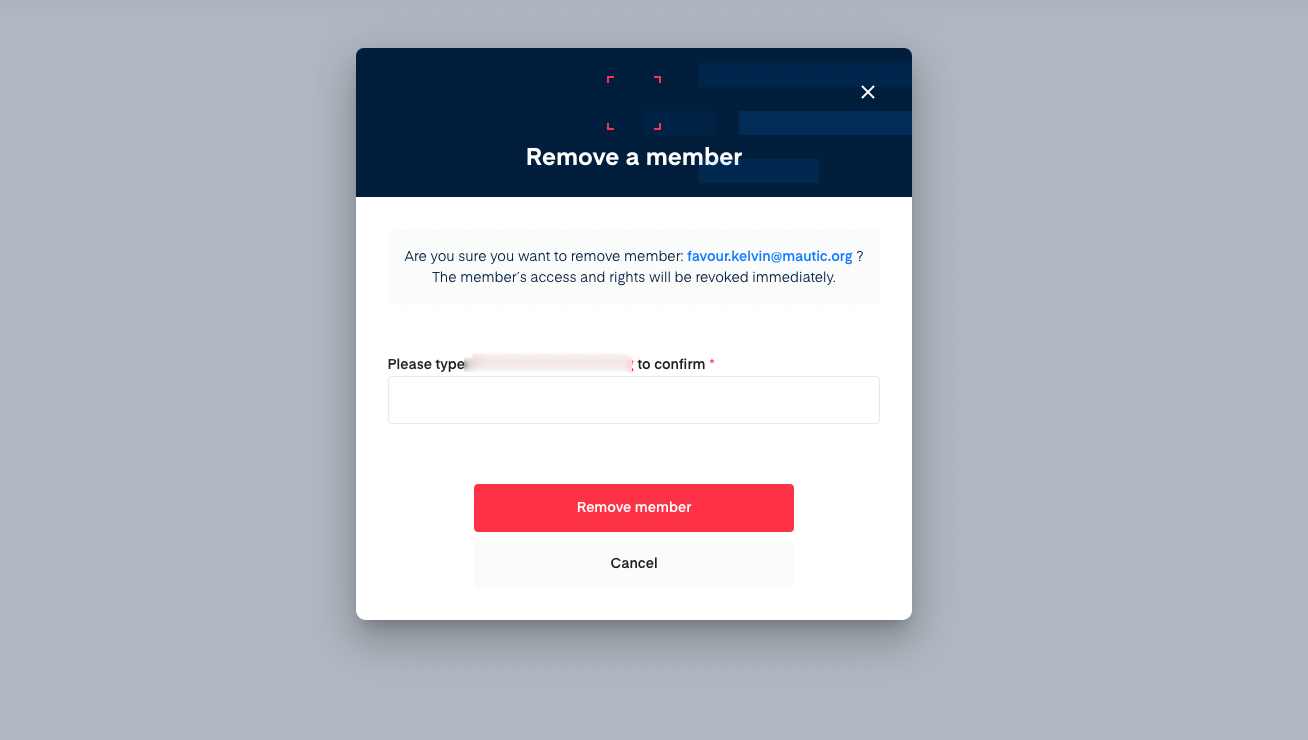
1. Click on the \*\*delete \*\* icon.
2. Type the email address to confirm the removal of the member.
3. Click on the **Remove member** button.
The member will be removed from your account and your **Members** overview page will be updated.
{% hint style="info" %}
To remove members who have admin roles, you'll have to contact the support team.
{% endhint %}
## API Keys Management
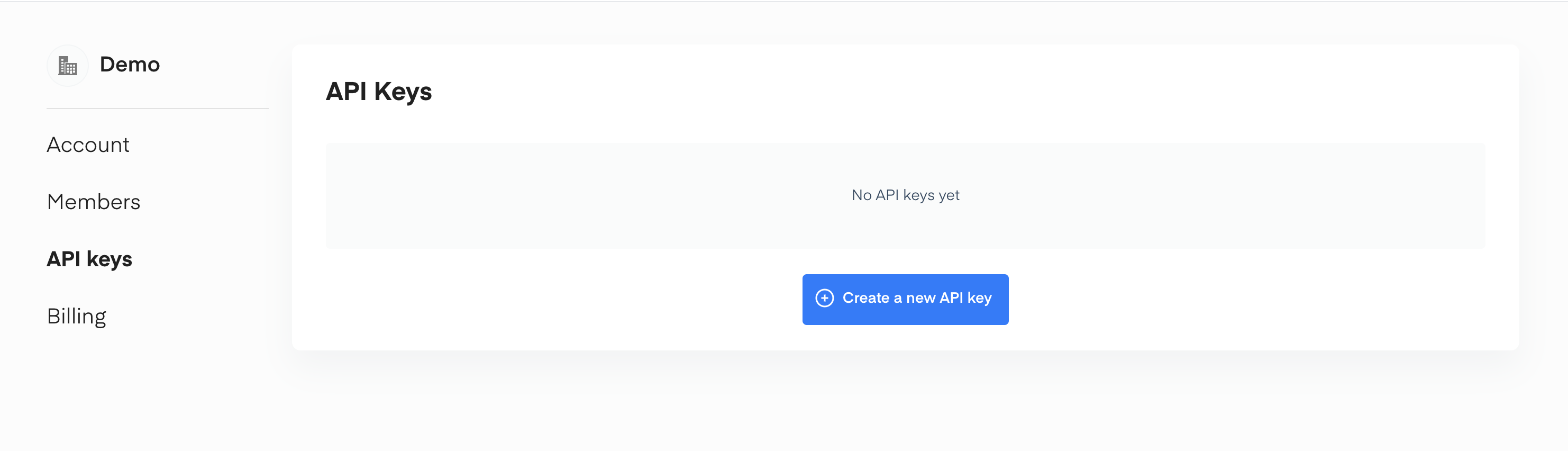
At the organizational level, you can create and manage your API keys. These API keys can be accessed by members of your organization. For a detailed guide on how to create your API keys, see [Create and Manage API keys](/v1/get-started/create-api-key.md)
## Leaving an Organization
{% hint style="warning" %}
Once this action is carried out, you'll no longer have access to the organization.
{% endhint %}
To leave an organization:
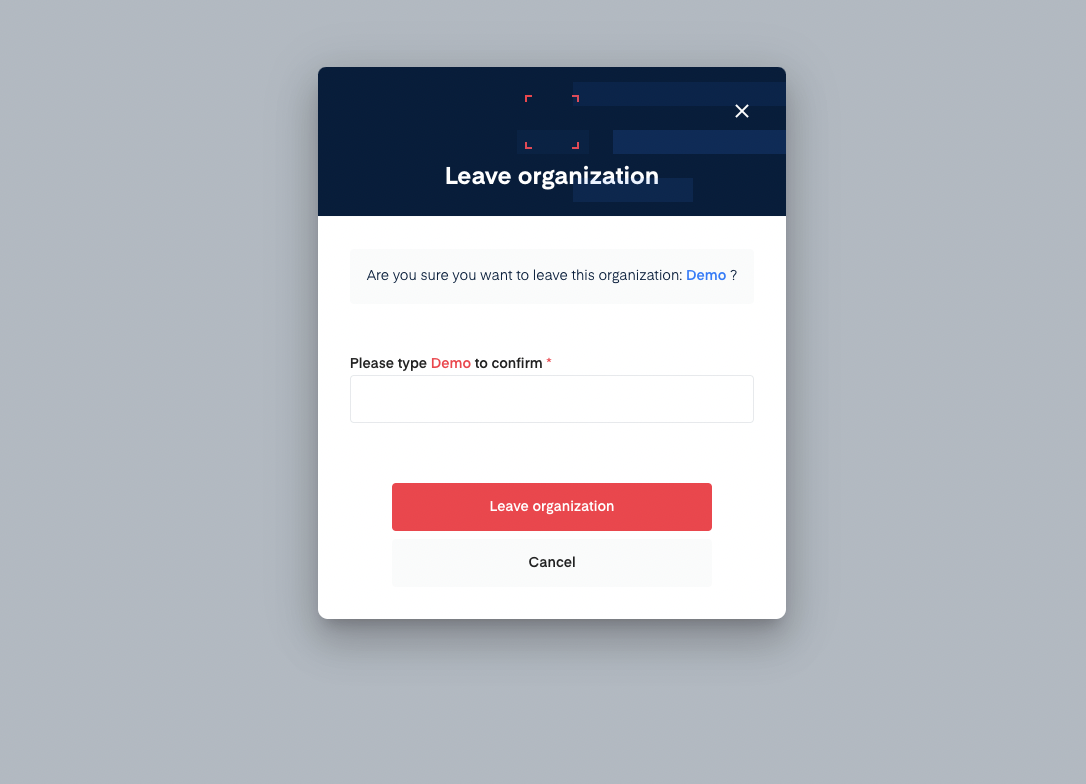
1. Click on the \*\*Leave organization \*\* button from the \*\*Organizations \*\* overview page.
2. Type the organization name to confirm.
3. Click on the **Leave organization** button.
---
# Agent Instructions
This documentation is published with GitBook. GitBook is the documentation platform designed so that both humans and AI agents can read, navigate, and reason over technical content effectively. Learn more at gitbook.com.
## Querying This Documentation
If you need additional information that is not directly available in this page, you can query the documentation by asking a question.
Perform an HTTP GET request on the following URL with the `ask` and `goal` query parameters:
```
GET https://docs.mindee.com/v1/account-and-profile/organizations.md?ask=&goal=
```
`ask` is the immediate question: it should be specific, self-contained, and written in natural language.
`goal` is what the user is ultimately trying to achieve, the reason they need the answer. Sharing it helps GitBook give you a better, more relevant answer. A goal is most helpful when it describes the outcome the user wants rather than restating the question. For example, with `ask=how do I create an API token`, a goal like `automate deployments from our CI pipeline` lets GitBook tailor the answer to that use case.
The response will contain a direct answer to the question and relevant excerpts and sources from the documentation.
Use this mechanism when the answer is not explicitly present in the current page, you need clarification or additional context, or you want to retrieve related documentation sections.