> For the complete documentation index, see [llms.txt](https://docs.mindee.com/llms.txt). Markdown versions of documentation pages are available by appending `.md` to page URLs; this page is available as [Markdown](https://docs.mindee.com/classification-models/classification.md).
# Classification Model Overview
Automatically attribute a class to a given document, from a list of classes you define yourself.
## Use Cases
Process a single document sent in a single file. The classifier looks at all pages of the document in order to identify its type.
Some common examples:
* You have multiple types of files in your workflow input, with different business rules
* You want to identify the region or language of documents
A file sent to the Classification Model product may have any number of pages, [within limits](/integrations/technical-limitations.md#file-limits).
{% hint style="info" icon="lightbulb" %}
If there is a high possibility of having multiple documents within the same file, use:
* [Split Model Overview](/split-models/split.md) ⇒ multiple documents in the same file
* [Crop Model Overview](/crop-models/crop.md) ⇒ multiple documents on the same page
{% endhint %}
## Create a Classification Model
Classification models are always custom, there are no templates available in the Catalog.\
This keeps Classification models flexible for different documents and workflows.
Each Classification model gets its own unique model ID when you create it.
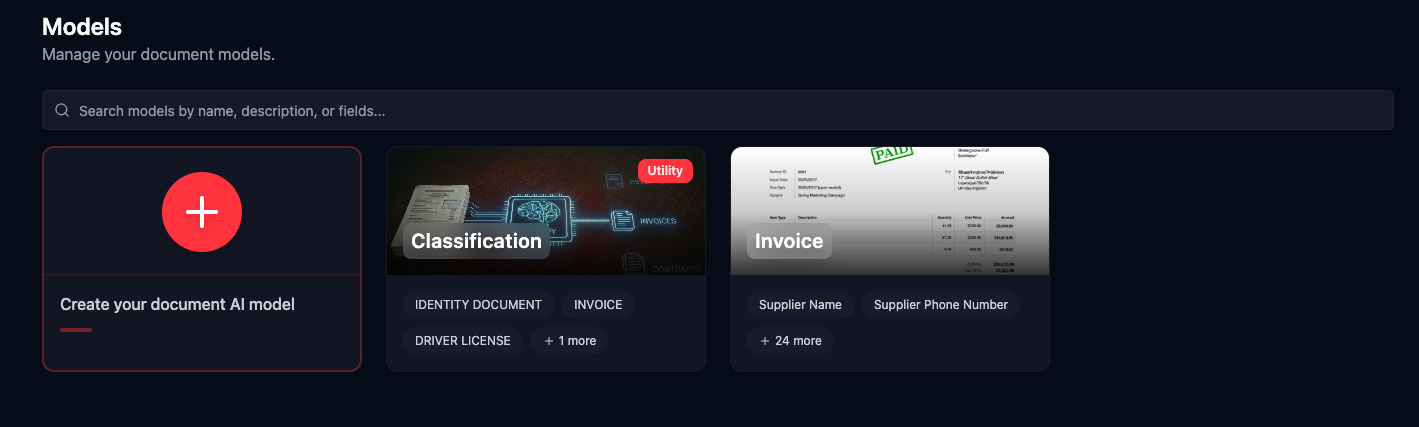
1. To create a Classification model, click on **Models**, and then click on **Create your document AI model**.
2. Scroll to the **Document Utilities** section, click on **Classify.**
3. A pop-up will appear, allowing you to enter the classes you want. Most of the time, you'll use one possible document type per class.\
\
For example, if the files you are processing contain invoices, receipts, and driving licenses, set the classes as:\
`INVOICES`, `IDENTITY DOCUMENTS`, `CONTRACTS`.\
\
Classes are returned exactly as defined: including upper or lower case, and any spaces.
{% hint style="info" icon="lightbulb" %}
Add the class `OTHER` if you need the model to identify documents that are not one of the explicitly defined classes.
{% endhint %}
4. Once ready, click on **Create Utility** to create your Classification Model.\
This step will also generate the model's unique ID.
5. You can now use the **Live Test** tab to process documents, and the **Utility Configuration** to update your classes.
Your utility is now available in your **Models** tab.
Here is a step-by-step tutorial that shows you how to properly create a Classify Utility :
{% @supademo/embed url="" demoId="cmls1rubd1jal11896wj0sg8q" %}
## Technical Considerations
Models requires at least two classes defined.
Class names may be in most languages and writing systems, but cannot exceed 128 characters.
Having more than a few dozen classes will yield unexpected results, and is not recommended. If you need classes based on vendor/customer names, product codes, phone numbers, etc, you should use a text field in an [Extraction model](/extraction-models/extraction-models-overview.md) instead.
{% hint style="info" %}
Class names will be returned **exactly** as defined on the platform in the return, spaces and capitalization included.
If the class names are changed on the platform, the change in the API return will be **immediate** for all new files sent.
{% endhint %}
## Integration
Once your Classification model is created and tested, integration documentation is provided in the "Documentation" page, or here: [Classification Quick Start](/classification-models/sdk-integration/classification-quick-start.md).
---
# Agent Instructions
This documentation is published with GitBook. GitBook is the documentation platform designed so that both humans and AI agents can read, navigate, and reason over technical content effectively. Learn more at gitbook.com.
## Querying This Documentation
If you need additional information that is not directly available in this page, you can query the documentation dynamically by asking a question.
Perform an HTTP GET request on the current page URL with the `ask` query parameter, and the optional `goal` query parameter:
```
GET https://docs.mindee.com/classification-models/classification.md?ask=&goal=
```
`ask` is the immediate question: it should be specific, self-contained, and written in natural language.
`goal` is optional and describes the broader end goal you are ultimately trying to accomplish on behalf of the user. GitBook uses it to tailor the answer towards what is most useful for that goal.
The response will contain a direct answer to the question and relevant excerpts and sources from the documentation.
Use this mechanism when the answer is not explicitly present in the current page, you need clarification or additional context, or you want to retrieve related documentation sections.